
The TL;DR (For the Screen-Fried Raid Leader)
Grab a giant cup of caffeine, parents, because we are clearing this setup dungeon together. Here is the lightning-fast cheat sheet before your little ones start pulling unmanageable aggro in the living room:
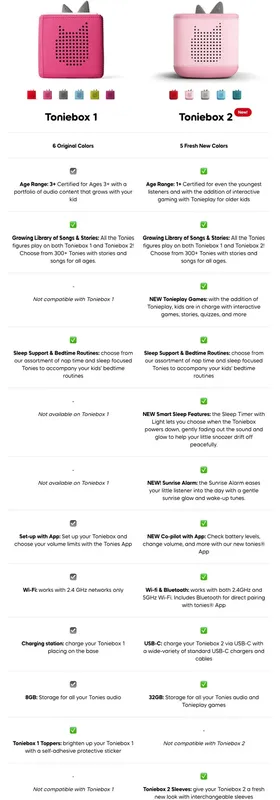
- The Wi-Fi Rule: If you are rocking the original Toniebox 1, lock your home router into a strict 2.4 GHz frequency band. If you managed to grab the upgraded Toniebox 2, you are in luck: its dual-band wireless card happily chats with both 2.4 GHz and 5 GHz networks.
- The Handshake: For the classic box, squeeze both silicone ears simultaneously for about five seconds until the main LED pulses blue to broadcast its temporary setup network. For the new version, just boot up the app and plug the box into power to spark the initial pairing mode.
- The Spec Reality: The generational shift is real. The original box caps out at 8GB of storage and uses a proprietary circular dock, while the shiny new Toniebox 2 boasts a massive 32GB memory block, standard USB-C charging, Bluetooth headphone capability, and interactive gaming features.
Campaign Module: Provisioning the Generational Hardware Platforms
Stepping into modern kids' media feels exactly like transitioning your character from fragile starting gear to a legendary, high-durability armor set. Remember the dark ages of our own childhoods? We survived cassette tape ribbons unspooling into a tangled nightmare inside the car stereo (requiring a tactical pencil rewind), optical audio discs gathering devastating surface scratches, and fragile plastic hinges snapping under the enthusiastic grip of a toddler.
Thankfully, the tech world evolved. Instead of spinning lasers or grinding mechanical gears that break the second they hit the playroom floor, these fabric-covered audio enclosures use rugged solid-state storage and near-field communication chips embedded inside cute magnetic figurines to trigger local audio playback.
Before your little squad can start blasting their favorite soundtracks, you have to establish a clean communication bridge between your home network and the remote cloud deployment servers.
Initial Provisioning Workflow
- Identify the Loot
- Flip your audio cube completely upside down before plugging anything into the wall outlet.
- Find the unique alphanumeric ID code stamped directly into the bottom plastic cap.
- Scribble this code down in your campaign journal because the power base completely hides it from view once seated.
- Power Your Infrastructure
- For a legacy Toniebox 1, plug the proprietary circular charging dock into a live wall socket and nest the box firmly on top.
- For a modern Toniebox 2, plug the standardized USB-C cable directly into the input power port.
- Ensure the box has a stable power connection during this initial boot script so the internal battery calibrates perfectly.
- Establish the Wireless Handshake
- For the original model, remove it from the dock or keep it nested, then pinch both ears until the light pulses blue. Connect your phone to the temporary "Toniebox-XXXX" Wi-Fi network to feed it your 2.4 GHz credentials.
- For the newer model, open your central app, kick off the new asset wizard, and let the dual-band wireless chip automatically pair via Bluetooth or link straight to your high-speed 5 GHz router.
Denying your hardware a stable power connection during this initial boot routine can mess up the internal cell calibration, causing the speaker to cut out early when removed from its power seat.
If you are setting up the legacy build, remember that it is strictly a 2.4 GHz creature. It will experience a total connection meltdown if your high-speed residential mesh router tries to force a fancy high-frequency 5 GHz connection during the initial setup handshake.
Side Quest: Conquering Dual-Band Routers and the Band-Steering Bottleneck
The number one reason parents wipe on this setup boss fight when using the older Toniebox 1 is aggressive modern home routing systems. Modern mesh networks love to automatically push smart devices onto the fast 5 GHz lane. That is amazing for streaming 4K movies or loading into a massive multiplayer online game, but it completely isolates legacy internal wireless antennas. The original hardware contains a radio module that is entirely blind to 5 GHz waves. If your home router forces a single, unified network name across both frequencies, the legacy wireless card will suffer a total communication breakdown, dropping the handshake sequence before the registration parameters can clear.
To defeat this band-steering bottleneck without losing your mind or rewriting your entire home IT infrastructure, you can use your smartphone as a tactical network bridge. This sneaky maneuver lets your audio box jump the configuration line completely by utilizing an isolated radio pipeline.
If you are on an iPhone, head to your cellular settings, open Personal Hotspot, and turn on the toggle to maximize compatibility. This command forces the phone to broadcast a pure, old-school 2.4 GHz signal. If you are running an Android device, open your portable hotspot settings, tap the advanced configuration options, and manually set the band allocation strictly to the 2.4 GHz spectrum while ensuring extended visibility is enabled. Once your mobile hotspot is active, connect your setup tablet or a second phone to it, run the standard configuration script to pass the credentials down to the cube, and let the device grab its updates straight from the cloud servers. Once the box turns solid green, you can shut off the hotspot and move it over to your main home network.
You can also exploit basic physics to force a lower frequency without touching a single software setting. High-frequency 5 GHz signals are incredibly fragile, meaning they fade quickly over distance and are easily blocked by thick sheetrock, concrete foundations, or heavy wood fire doors. Grab your phone and the classic audio box, then take a quick walk to the absolute edge of your yard, leaving your main router deep inside the house. As the distance increases, the weak 5 GHz signal will completely drop off, forcing both your phone and the cube to naturally lock onto the long-range, highly durable 2.4 GHz channel. Complete your setup on the property line like a true tech wizard, wait for the solid green light, and march back inside victorious.
If you prefer an administrative approach from your command center, log into your home router's admin dashboard using its local numeric IP address. Find the wireless channel settings, isolate the 5 GHz radio broadcast, and temporarily turn it off. This plunges the entire house onto the 2.4 GHz radio band for a brief operational window. Run the standard setup script while the high band is totally dark, verify the solid green success light, and then reactivate the 5 GHz radio so the family gaming rigs can get their maximum bandwidth back.
Campaign Module 2: The Critter Codex: Troubleshooting Generational Error Codes and Reset Logistics
When your smart audio box hits a snag, it does not give you a boring alphanumeric error log or a blue screen of death. Instead, the system broadcasts a specific animal name to tell you exactly where the communication pipeline snapped. Learning this custom bestiary lets you apply targeted fixes instead of wiping your entire configuration.
The most common early-game encounter on older hardware is the Hedgehog. This warning means there was a structural handshake failure between your router and the box during the initial network setup. It is almost always caused by an incompatible router security protocol or an aggressive optimization setting that kicked the toy offline mid-handshake. To beat the Hedgehog, clear the network profile from your app and use the mobile hotspot bridge method to sneak past the router's defenses.
Next up is the Turtle. This code means the audio box has lost its wireless path entirely or is sitting too far from the broadcast source to grab a stable stream. If your kid runs into the kitchen and the audio cuts out with a Turtle alert, the box was simply carried past your router's optimal boundary. Moving the cube back into the main room hosting the gateway usually fixes it instantly. If it throws a Turtle alert right next to the router, the local network profile has corrupted, meaning you need to overwrite the wireless credentials with a fresh manual setup pass.
The Ant designation presents a unique troubleshooting challenge. This means the local connection between the box and your router is perfectly healthy, but your firewall or internet service provider is actively blocking the toy from reaching the external cloud verification servers. To clear this block, log into your provider's router console and ensure that outbound traffic on security ports 443 and 80 is completely open for this specific hardware device.
For those running the upgraded modern platform, you will encounter an entirely separate suite of error codes tailored to the new internal electronics. The Frog error code pops up on the Toniebox 2 when it hits a temporary configuration hiccup right in the middle of setup and needs a full system reboot to clear its head. To tame this little amphibian, you just need to initiate a hard manual power cycle directly on the box.
The modern unit also loves to throw the Rabbit designation. This bouncy visitor hops into your listening experience when the Toniebox 2 is having trouble finding your Wi-Fi network specifically when a character figurine or interactive gaming disc is resting on top of the plate. To clear the Rabbit warning, lift the figurine off the rubber plate for a few moments to let the wireless card re-establish its cloud connection, or place the box on its active power source and hold a single ear node for three seconds to trigger a manual library sync.
When software patches and network adjustments fail to clear a system lock, you must deploy a manual factory wipe. Because the internal layout was completely re-engineered between hardware releases, the reset mechanics are totally different for each platform.
Factory Reset Workflow
- The Toniebox 1 Purge
- Ensure the circular charging station is plugged into a live wall socket.
- Flip the legacy audio box completely upside down so the ears face the floor.
- Place the silicone ears face-down directly onto the center of the plugged-in charging dock.
- Pinch both ears firmly at the same time and hold them for a solid ten seconds until you hear an audio tone and the light flashes.
- The Toniebox 2 Purge
- Keep the modern device standing right-side up throughout the entire procedure.
- Disconnect the USB-C charging cable from the input port to prevent standard power overrides.
- Clamp both silicone ears down simultaneously with a firm grip.
- Maintain this compression for at least 30 full seconds, ignoring any early light pulses, until the unit completely shuts off and restarts.
The Mid-Point Reset
Take a quick break, grab a fresh cup of coffee, and stretch your legs. Managing a household full of connected smart tech while trying to raise happy kids can feel exactly like tanking a high-tier raid boss with a group of completely under-geared companions. Whether you are adjusting a smart toy, fixing a loose speaker cone, or tuning a musical instrument, getting the mechanics right takes absolute patience. Luckily, these fabric audio cubes are built like absolute tanks, engineered to survive heavy falls, accidental drops, and general toddler chaos without cracking the internal circuit boards.
Behind the scenes of this platform, writing these custom user guides and tracking down network bugs is a true labor of love. Every single piece of our creative workflow, from cataloging error databases to drafting reference notebooks for independent projects, is done entirely by hand, keeping our content completely free of cheap automated generation tools. We believe in old-school craftsmanship, whether we are building a solid wall partition or writing a reliable guide. Now that the main error codex is sorted out, let us tackle the final boss questions that pop up during your listening campaigns.
Boss Guide & Meta (FAQs)
What should be done if lateral haptic strikes fail to advance audio chapters?
The box features an internal accelerometer designed to track sudden movement, allowing kids to swat or slap the sides of the fabric to skip tracks. If a firm hit does absolutely nothing, it is usually because the box is being held in mid-air or sitting on a soft surface like a plush mattress or a shag playroom rug, which absorbs the force like a high-level rogue dodging an incoming attack. For the sensor to register the strike, the box must be resting flat on a hard, solid surface like a wooden table or a hardwood floor. Give it a sharp tap on the side while it is resting flat, and it will skip chapters perfectly.
How can a user reassign hardware that is currently linked to an active external household profile?
If you score a used box from a garage sale or a second-hand shop, it will stubbornly refuse to link to your app if the previous owner forgot to delete it from their profile. This triggers an automatic security lockout. To break this digital bond, you must run the specific factory reset sequence for your generation of hardware to completely clear the volatile memory block. Once the memory is fully wiped, connect the system to a temporary mobile hotspot to initiate its first check-in with the master registry. This overwrites the old family ID and pins the hardware permanently to your personal dashboard.
Why does a specific character figure trigger a solid red warning signal on the plate?
A solid red light means the short-range near-field communication reader successfully scanned the chip inside the figurine, but the internal operating system cannot find the matching audio files in its local storage and cannot reach the internet to fetch them. This typically happens if your Wi-Fi drops the exact second the toy is placed on top. To clear the red light, check that your home internet is fully active, place the cube closer to your wireless access point, and leave the figurine completely undisturbed on the magnetic plate until the light changes to a pulsing blue download state.
Disclaimer: Our goal is absolute technical accuracy, but we are human and bugs happen in the code. We never intend to offend, insult, or attack anyone with our content. If you spot a bad data point or a broken fact, please report the post so we can patch it immediately. We are just a three-person squad running this site, managing the daily blog, and prepping the new forums. If you appreciate the grind and want to help us keep the lights on, consider buying us a coffee. It keeps our caffeine levels critical and the servers running.
Reference Log
- Official Tonies Support Error Code Hub: https://support.tonies.com/hc/en-us/articles/29036359650322-Error-Codes
- Official Tonies Troubleshooting for Code Word Frog: https://support.tonies.com/hc/en-us/articles/29036403414930-Code-Word-Frog
- Official Tonies Network Analysis for Code Word Rabbit: https://support.tonies.com/hc/en-us/articles/29036415688466-Code-Word-Rabbit
- Official Tonies Introduction to Toniebox 2 Features: https://support.tonies.com/hc/en-us/articles/29036450638866-Toniebox-2-Everything-you-need-to-know
- Official Tonies Setup Troubleshooting Matrix: https://support.tonies.com/hc/en-us/articles/29254801924754-Toniebox-2-Setup-troubleshooting